Your First Week With Briifd: A Checklist
A day-by-day plan for getting your first client onboarded, tagged, and producing reports — without overhauling your existing stack.
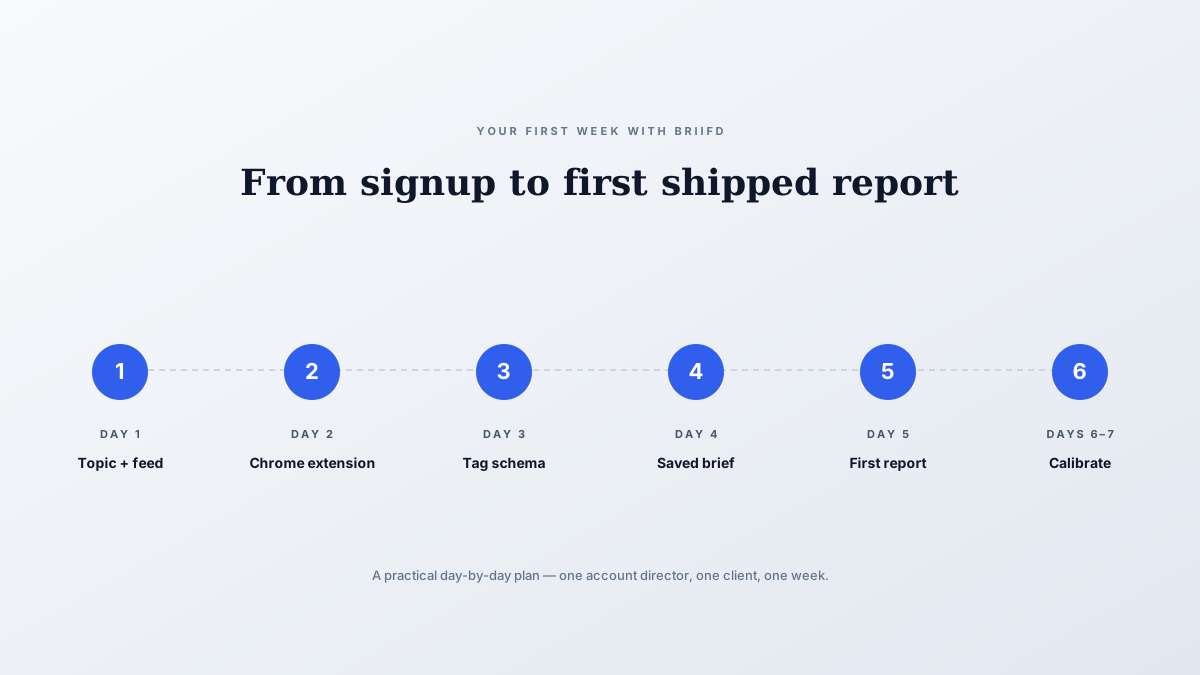
Most new tools fail on adoption, not features.
The team signs up, plays with it for a week, and falls back to the old workflow because the path to “this is genuinely useful” took longer than the patience window.
This checklist is the path that actually works, drawn from how successful Briifd onboardings tend to go. It assumes one account director, one client, one week. After that, expansion to other clients takes a fraction of the time.
Day 1: Set up the topic and connect a feed
Goal: get coverage flowing in.
- Create your Briifd account on the Free plan (upgrade later if you outgrow the limits)
- Create your first topic — name it after the client (e.g., “Acme Corp”)
- Fill in the topic context: company description, key positioning, top three competitors
- Copy the topic’s inbound email address
- Set up forwarding from your monitoring tool (Meltwater, Cision, or Google Alerts) to that address — filter to alerts containing the client name
- Wait for the first batch of articles to land (usually within an hour if alerts are active)
If you don’t have a monitoring tool active, skip the forwarding step and use bulk paste: drop a list of recent URLs into the topic and the system will fetch them.
Day 2: Install the Chrome extension
Goal: capture paywalled and long-tail coverage.
- Install the Briifd Chrome extension from the Chrome Web Store
- Sign in with your Briifd account
- Confirm you’re logged into your usual paywalled outlets in Chrome (WSJ, FT, Bloomberg, etc.)
- Test: open one paywalled article, click the extension, confirm full text lands in the topic
- Test bulk: paste 5 URLs into the bulk import, verify they all process
This is the step most new users underestimate. Until you’ve seen a Wall Street Journal article come through with full text, the difference between Briifd and your current tool is abstract. Once you see it, the value clicks.
Day 3: Define your first tag schema
Goal: get the AI tagging on dimensions that actually matter for this client.
- Open the topic settings, navigate to “Custom Tags”
- Add 3-4 dimensions — start with these defaults if unsure:
message_alignment: [aligned, partial, off-message, contradicting]
spokesperson_presence: [quoted, named, mentioned, absent]
competitive_context: [solo, vs-named, vs-category, no-mention]
audience_tier: [executive, consumer, trade, niche]- Write a specific prompt for each tag — describe the criteria the AI should use, with examples
- Wait for tagging to run on the existing articles (auto-runs as articles are ingested)
- Review the tagged articles — click into 5 of them, ask “is this tag right?”
If they don’t match, refine the prompt. This is the step that makes or breaks the experience — vague prompts produce vague tags.

Day 4: Save a recurring brief
Goal: turn your weekly client brief into something close to a one-click operation.
- Open your topic and find the brief or saved-prompt area
- Configure a brief for your weekly summary — include audience, goal, format, and what to skip
- Generate it on the past week’s articles
- Edit the output — note where it needs to be sharper
- Refine the brief settings and re-run
A few prompt patterns that tend to work:
- “Write a one-paragraph weekly brief for [client]‘s VP of Comms covering coverage from [date range]. Lead with the most material item. Skip routine trade press unless it shows narrative shift.”
- “Identify the 2-3 articles from this week most worth surfacing to the executive team. For each, write one sentence on why it matters.”
Day 5: Run your first report
Goal: ship a deliverable to the client (or simulate one).
- Open the Reports section for your topic
- Pick a template (start with the weekly summary)
- Run the report
- Review the output — your tags, your AI summaries, your saved briefs all flow into the report
- Make any final edits and export to PDF
- Compare the time-to-ship to your usual workflow
Day 6-7: Calibrate and decide
Goal: figure out if Briifd is staying.
- Skim the past week’s tagged coverage — does the AI catch what your team would catch?
- Identify one or two tags or briefs that need refinement and update them
- Compare your week with Briifd to a typical week without it. Where did you save time? Where did the output get sharper?
- Decide: expand to a second client, or extend the evaluation to test a specific case
For the lived-experience version of what week two looks like, see a week with Briifd — what 30 minutes a week of actual Briifd time looks like.
Week two and beyond
Once one client is running cleanly, the second one onboards much faster — most of the configuration patterns transfer (tag schema templates, brief structures, monitoring forwarding rules). By the third client, the rhythm is muscle memory. Most accounts have their full client roster in Briifd within a month, and the team’s daily rhythm has shifted around it.
The most common note from users at the four-week mark is some version of “I can’t believe we used to do this manually.”
That’s the right outcome. The tool isn’t supposed to be exciting. It’s supposed to be the new floor.
Ready to start your first week? Get started free — no credit card required.
Try Briifd on your own coverage
Free tier — no credit card, get started in a few minutes.
Related reading
Case Study: Mapping the Blame in Healthcare Cost Coverage
How a Midwest hospital coalition uses custom AI tagging to track who gets blamed for healthcare costs — and why generic monitoring tools couldn't measure that.
Workflow TipsA Week With Briifd: 15 Minutes, Not Eight Hours
Briifd isn't a tool you live in. Here's what 15 minutes of weekly work actually looks like — check, recover, recap, and a few clicks for the report.
ComparisonsBriifd vs. Meltwater and Cision: An Honest Comparison
When to use a traditional monitoring tool, when to use Briifd, and why most agencies end up using both.