Setting Up Your Data Sources: Meltwater, Google Alerts, and Manual Adds
A practical walkthrough for plugging your existing monitoring stack into Briifd. No re-platforming, no rip-and-replace.
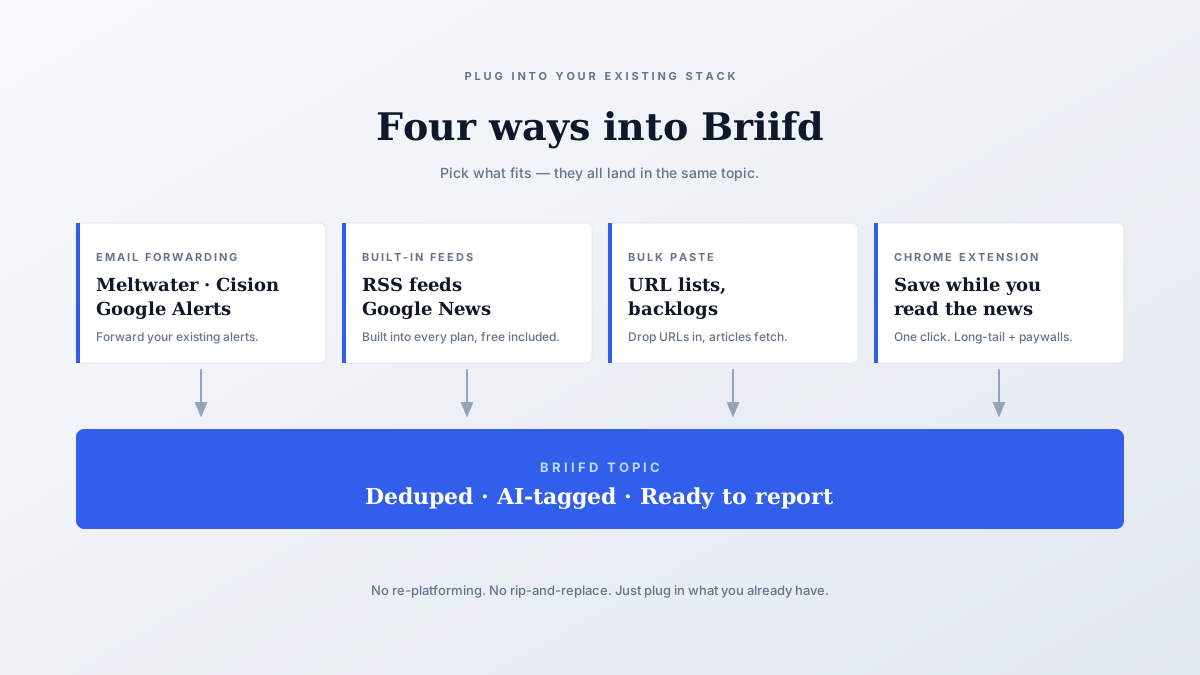
If you’re evaluating Briifd, you probably already have a monitoring tool. Maybe Meltwater. Maybe Cision. Maybe a stack of Google Alerts and a Google Doc held together with hope.
Briifd doesn’t replace any of those. It sits downstream and turns whatever feed you have into structured, AI-tagged, client-ready reports.
This post walks through the four most common ways to get coverage into Briifd.
1. Email forwarding from Meltwater, Cision, or Google Alerts
The fastest path. Every monitoring tool sends you alerts by email. Briifd gives each topic a unique inbound email address — forward your alerts there and the articles flow in automatically.
Setup steps
- Create a topic in Briifd (one per client, or per beat)
- Copy the topic’s inbound email (looks like
topic-acme-corp@in.briifd.com) - Add it as a forward rule in Gmail or Outlook
- Filter on your monitoring tool’s sender — e.g., everything from
alerts@meltwater.comcontaining the client name
Once that’s running, every Meltwater digest auto-imports. URLs get extracted, articles get fetched, AI tagging runs on a schedule. You don’t touch anything.

2. Built-in feeds: RSS and Google News
You don’t need an external monitoring tool to fill a topic. Two automated feeds are built directly into Briifd — set them up once inside the topic, and articles import on a schedule.
RSS feeds
Most outlets, blogs, and Substacks publish RSS. Paste a feed URL into the topic’s RSS configuration and Briifd polls it for you, importing new articles as they appear.
Where this shines:
- Trade publications that don’t surface in general-purpose monitoring tools
- Substacks and newsletters with a passionate niche audience
- Industry blogs that punch above their reach
Google News searches
Configure a Google News query inside your topic — usually a client name plus a few competitors — and Briifd runs that search on a schedule, importing the results.
This is the closest thing to a “free Meltwater” most teams need. For a US-focused beat without broadcast or social-listening requirements, well-tuned Google News queries cover a surprising amount of ground.
3. Bulk paste from spreadsheets
For one-off backlogs — a quarterly review, a campaign wrap-up, a new client onboarding — you’ll usually start with a list of URLs in a spreadsheet.
Drop a column of URLs into the bulk import box, hit submit, and the system fetches each article in the background.
What happens behind the scenes
- Paywalled articles are flagged for paywall recovery — open the Chrome extension, click “Recover” on the topic, and full text flows back in
- Everything else is fetched, parsed, and tagged automatically
4. Manual add via the Chrome extension
The most underrated workflow. While you’re reading the news in Chrome — which you’re doing anyway — the Briifd extension adds a one-click “save to topic” button.
Found a relevant article? Click. Done.
Where this shines
- Niche industry blogs that no monitoring tool catches
- Substacks and newsletters that don’t show up in standard feeds
- LinkedIn or X posts where an executive is quoted (the extension captures the post text)
- Trade publications that send to email but not always to monitoring tools
The extension auto-detects the topic based on URL patterns or lets you pick from a dropdown. We’ve seen accounts where 40% of saved articles come through this flow — the long-tail coverage that monitoring tools miss but that often matters most to senior clients.
Mixing and matching
You don’t have to pick one. The most effective Briifd setups we see layer all four:
- Email forwarding for the firehose if you already pay for Meltwater or Cision
- RSS + Google News for niche outlets and free keyword coverage
- Bulk paste for backlogs and quarterly reviews
- Chrome extension for high-signal manual catches and paywall recovery
Once it’s running, the maintenance load is essentially zero. New article shows up in your monitoring tool, gets forwarded, gets tagged, lands in your next report. You only touch it when you want to.
A few setup tips
Tune your filters before forwarding. If you forward every Meltwater alert, you’ll import a lot of noise. Filter to “client name appears in body” or “competitor is mentioned” — narrow the firehose at the source.
Use the dedup. Briifd deduplicates articles by URL automatically, so it’s safe to forward overlapping alerts (e.g., Meltwater + a Google Alert on the same brand). The same article won’t land twice.
What about the legacy tool?
You don’t need to cancel anything. Briifd works with your current monitoring stack, not against it.
Most agencies keep Meltwater for the discovery layer (its crawl is broad) and use Briifd for the analysis and reporting layer that sits downstream. For the long-form comparison, see Briifd vs. Meltwater and Cision.
If you’re starting from scratch, the first-week checklist lays out the whole onboarding day by day.
Ready to plug in your monitoring stack? Get started free and forward your first alert in under ten minutes.
Try Briifd on your own coverage
Free tier — no credit card, get started in a few minutes.
Related reading
Tuning Your AI: Custom Tags That Actually Match Your Workflow
Out-of-the-box sentiment scores don't help your clients. Here's how to set up custom tags that mirror the way your team actually thinks about coverage.
How-ToHow to Recover Paywalled Articles for Your Coverage Reports
WSJ, Bloomberg, FT — the outlets that matter most are the hardest to capture. Here's how to pull full article text into your reports without copy-paste gymnastics.
TemplatesYour First Week With Briifd: A Checklist
A day-by-day plan for getting your first client onboarded, tagged, and producing reports — without overhauling your existing stack.